From individual images to a volume. Explore linked DICOM planes, rotate slices around a shared point and unfold images along a path you choose. Your library stays on your device.
MIDRC 1.7 (12): public beta for iPhone and iPad via TestFlight.
Android — coming soon.
The app supports English, Russian, German and Spanish. Choose Settings → App language; changes apply immediately and persist after restart.
MIDRC 1.6 (10) · iPhone & iPad
MIDRC modes — real app screens
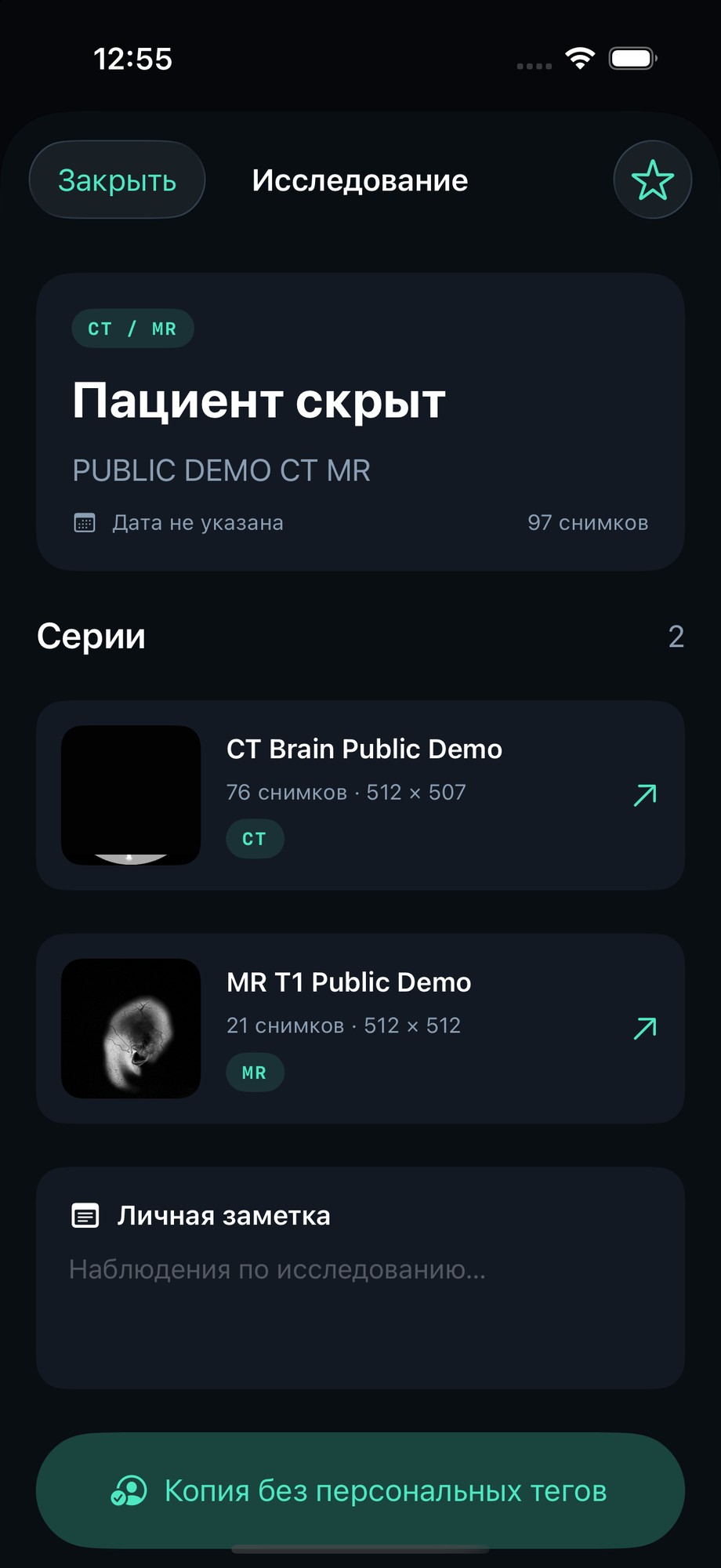
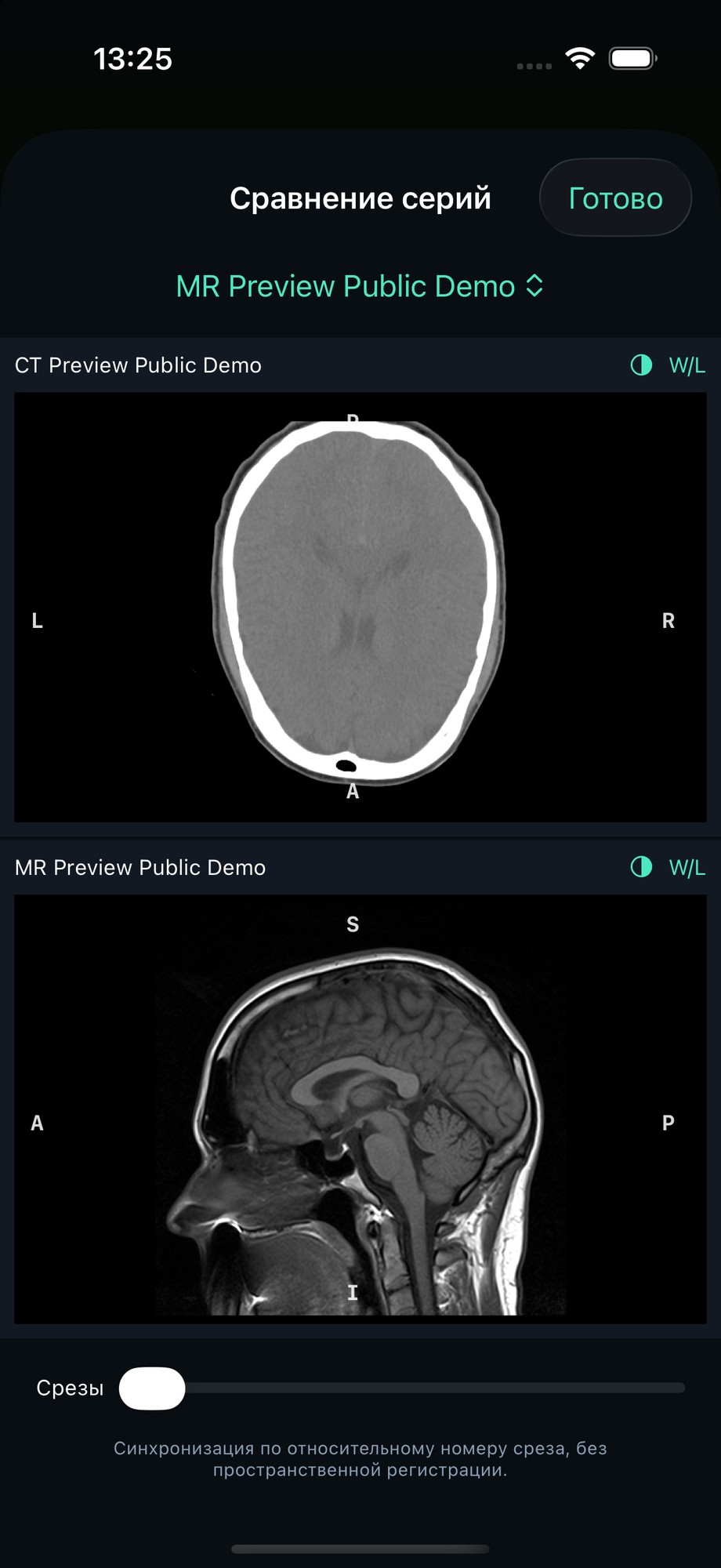
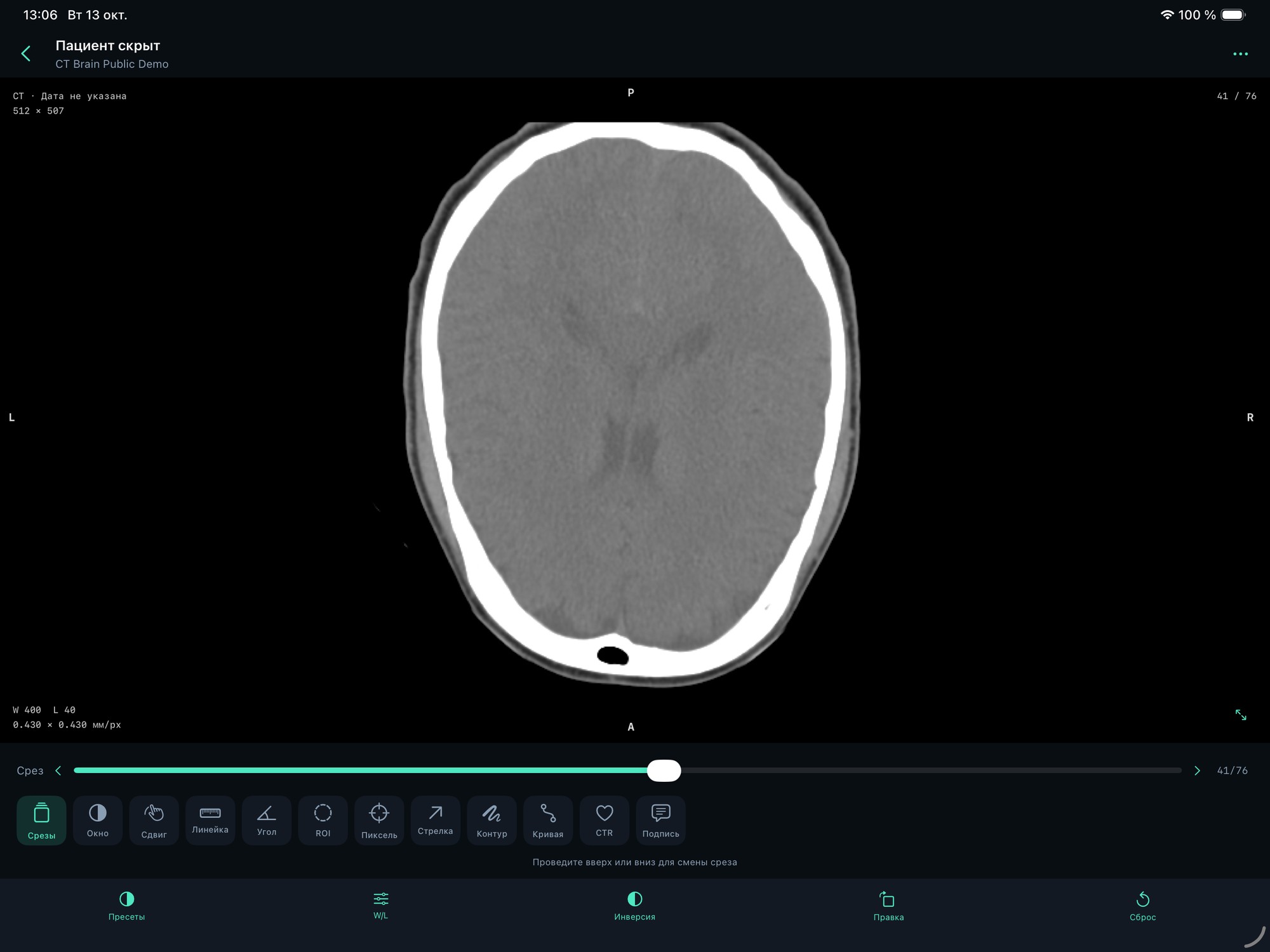
27 screenshots of version 1.6 on iPhone and iPad. Choose a device and mode, then select an image for a larger view. Every example includes a description of the visible tools. These captures use the Russian interface; MIDRC 1.7 also supports English, German and Spanish.
Showing: 27 of 27
No separate screenshot matches this combination. Select all devices or another mode.
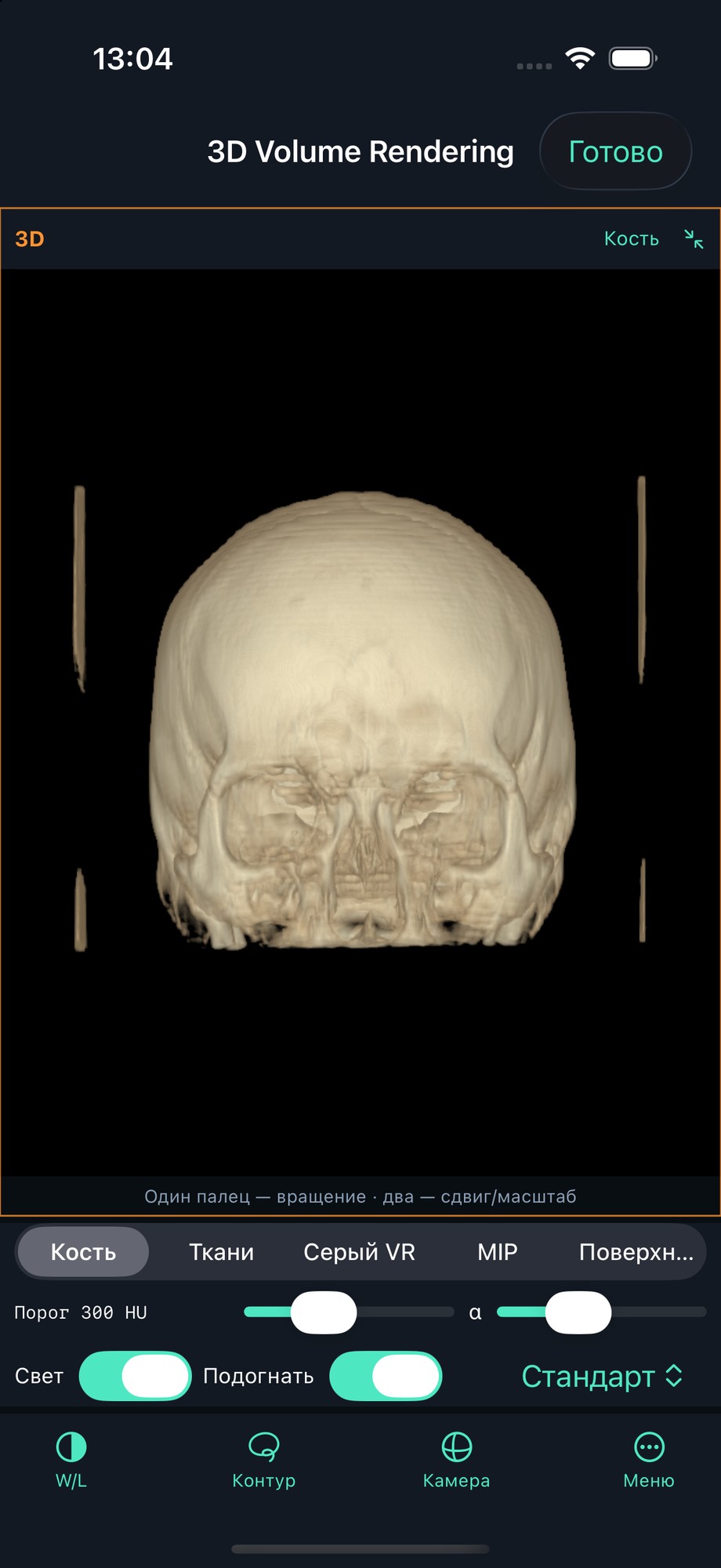
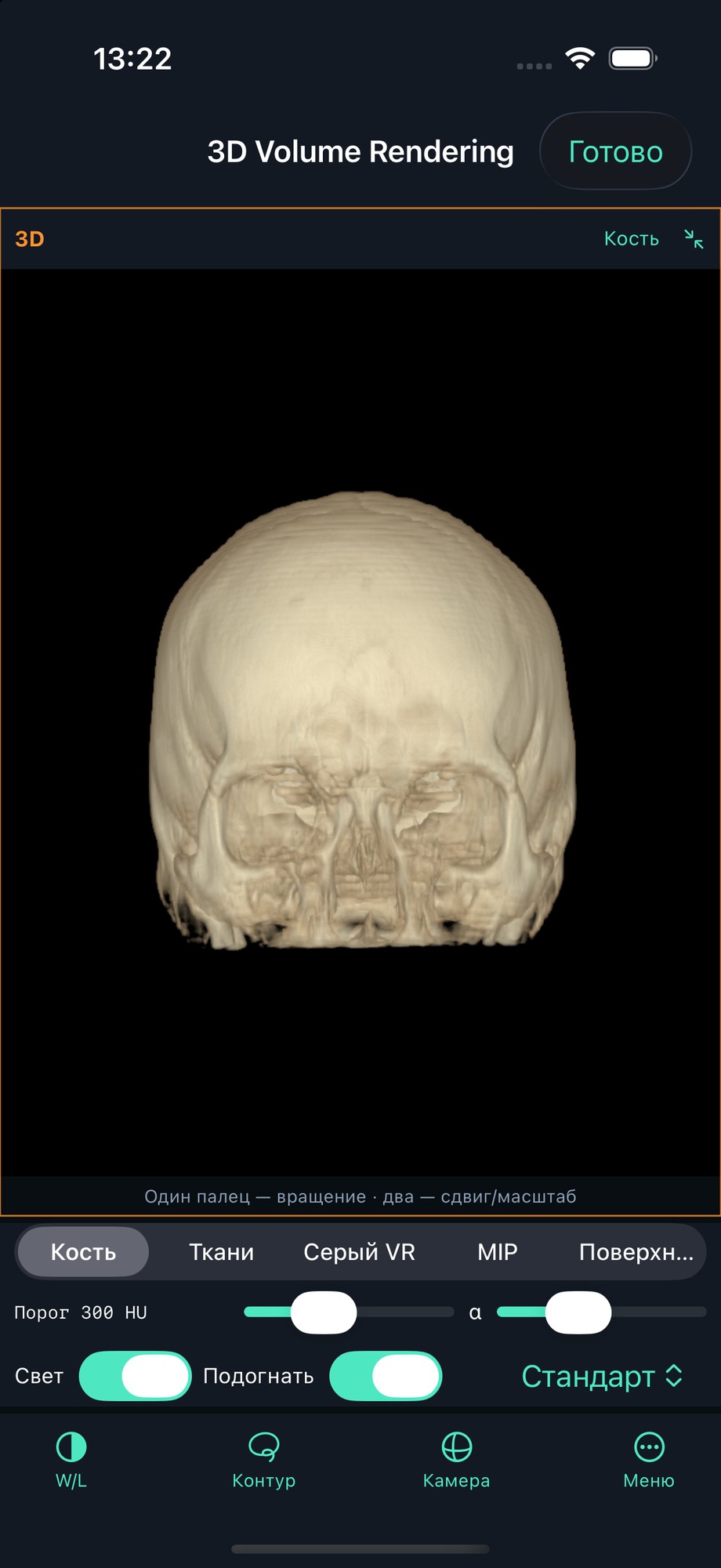
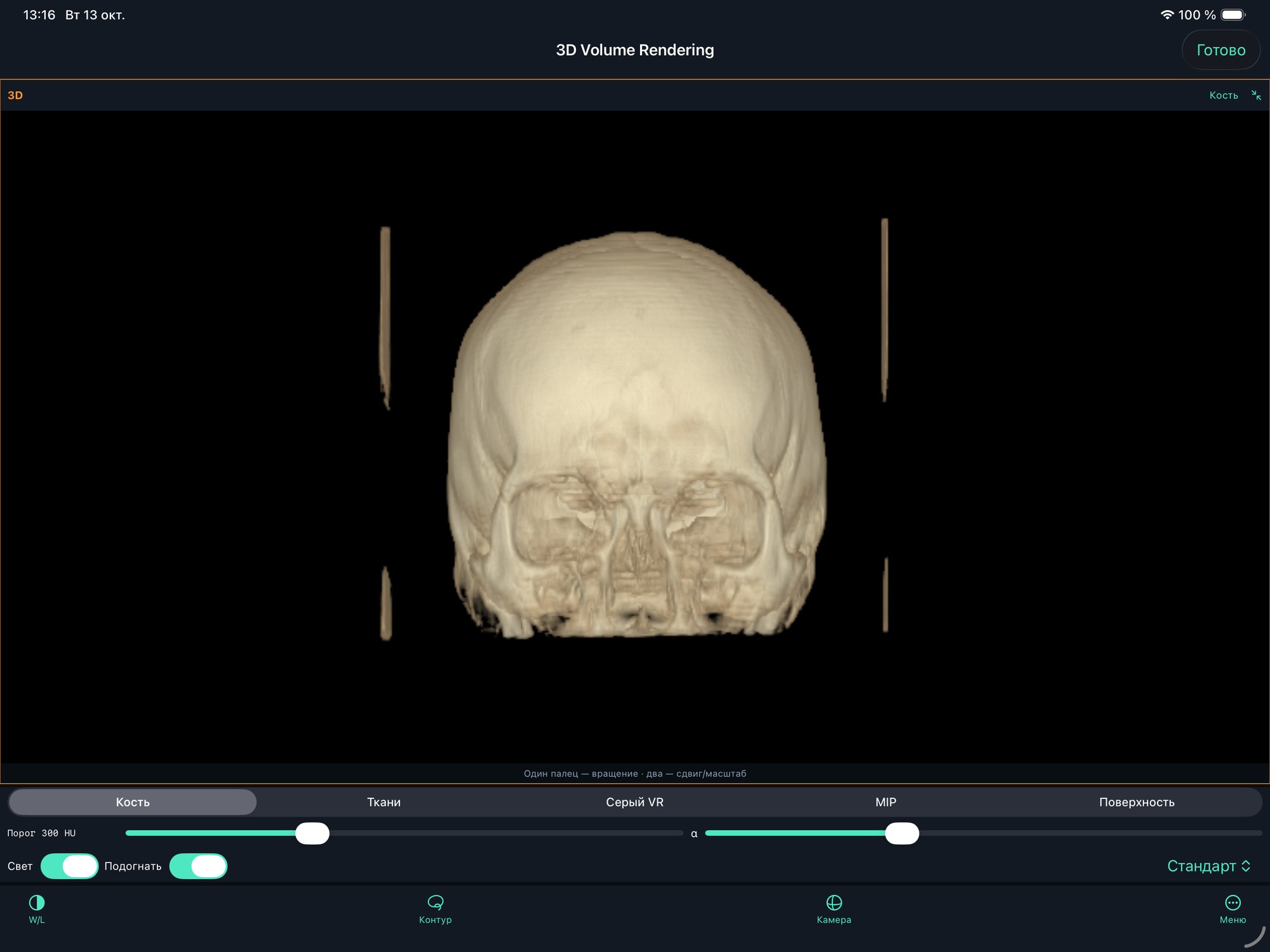
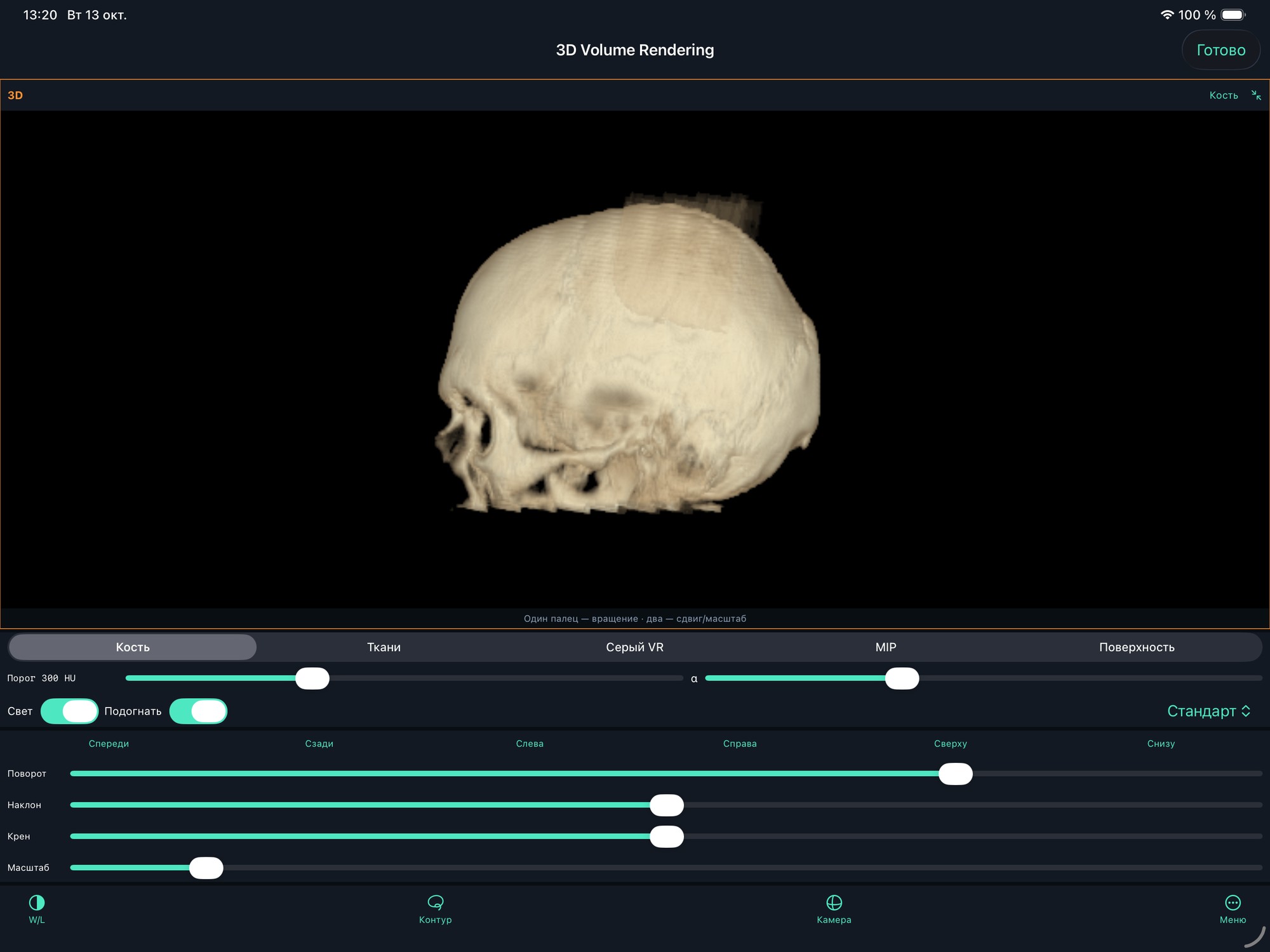
Bone volume with colour and opacity. Material, threshold, alpha, lighting and quality are below the image; camera and contour tools are on the toolbar.
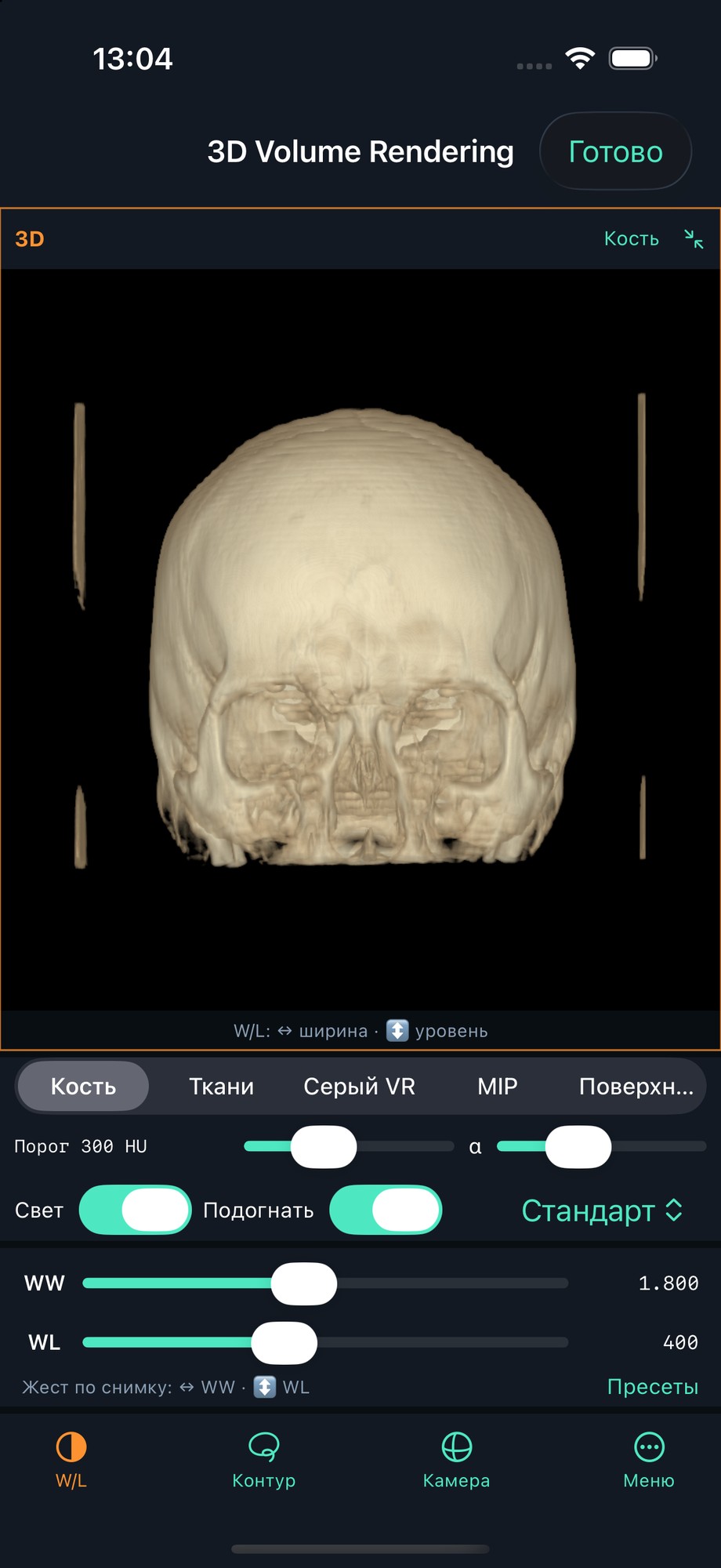
Window controls below the bone volume. Material, threshold and opacity remain available alongside the visible result.
Public CT/MR teaching data from the 3D Slicer CT-MR Brain sample, converted to DICOM for these examples. No private user studies were used. Screenshots demonstrate the interface and are not diagnostic conclusions. Sample source and usage terms.
MIDRC 1.7 (12) · TestFlight
New tools for volumes and measurements
MIDRC 1.7 capabilities for iPhone and iPad. Learn what each mode does and how to open it. The app supports English, Russian, German and Spanish.
01 / In TestFlight 1.7
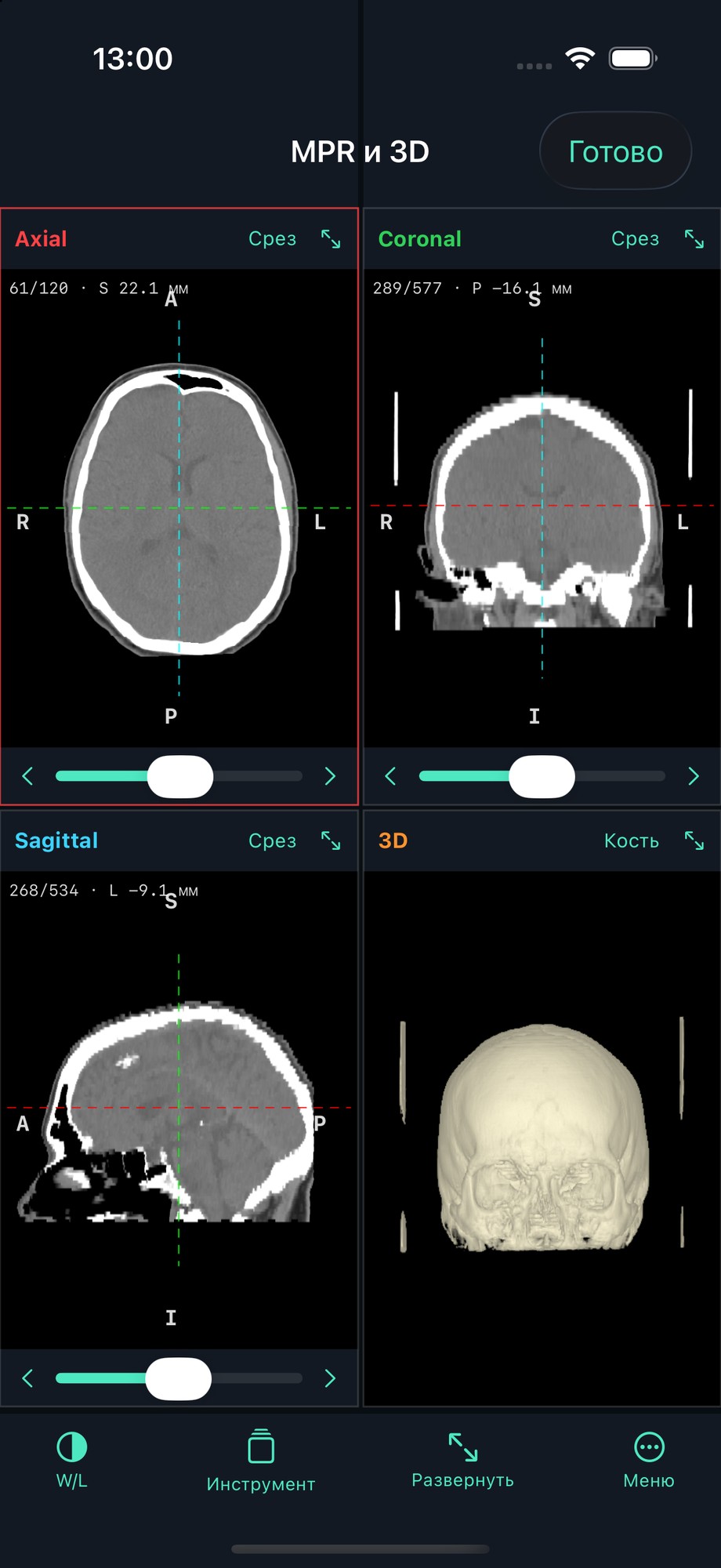
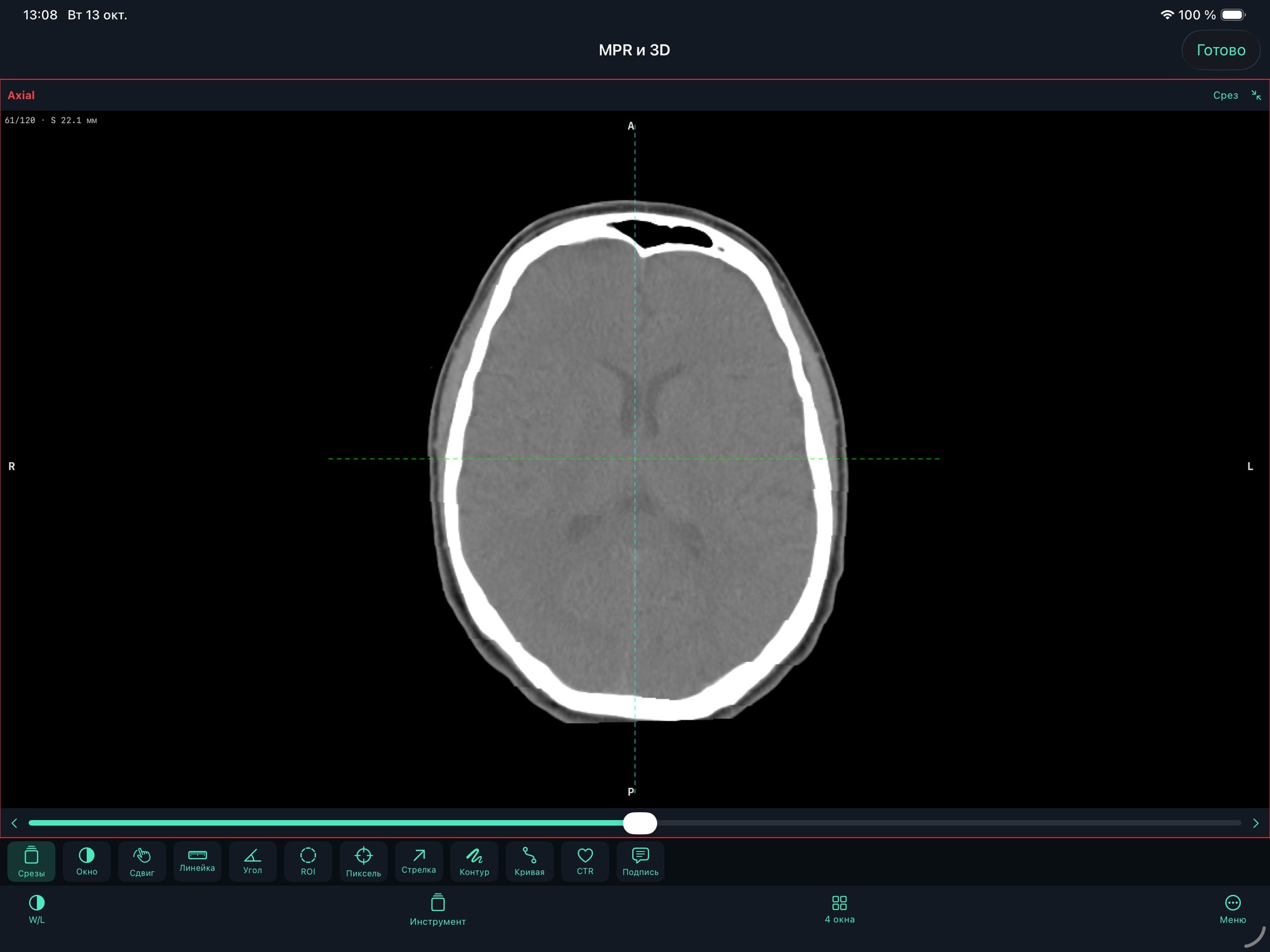
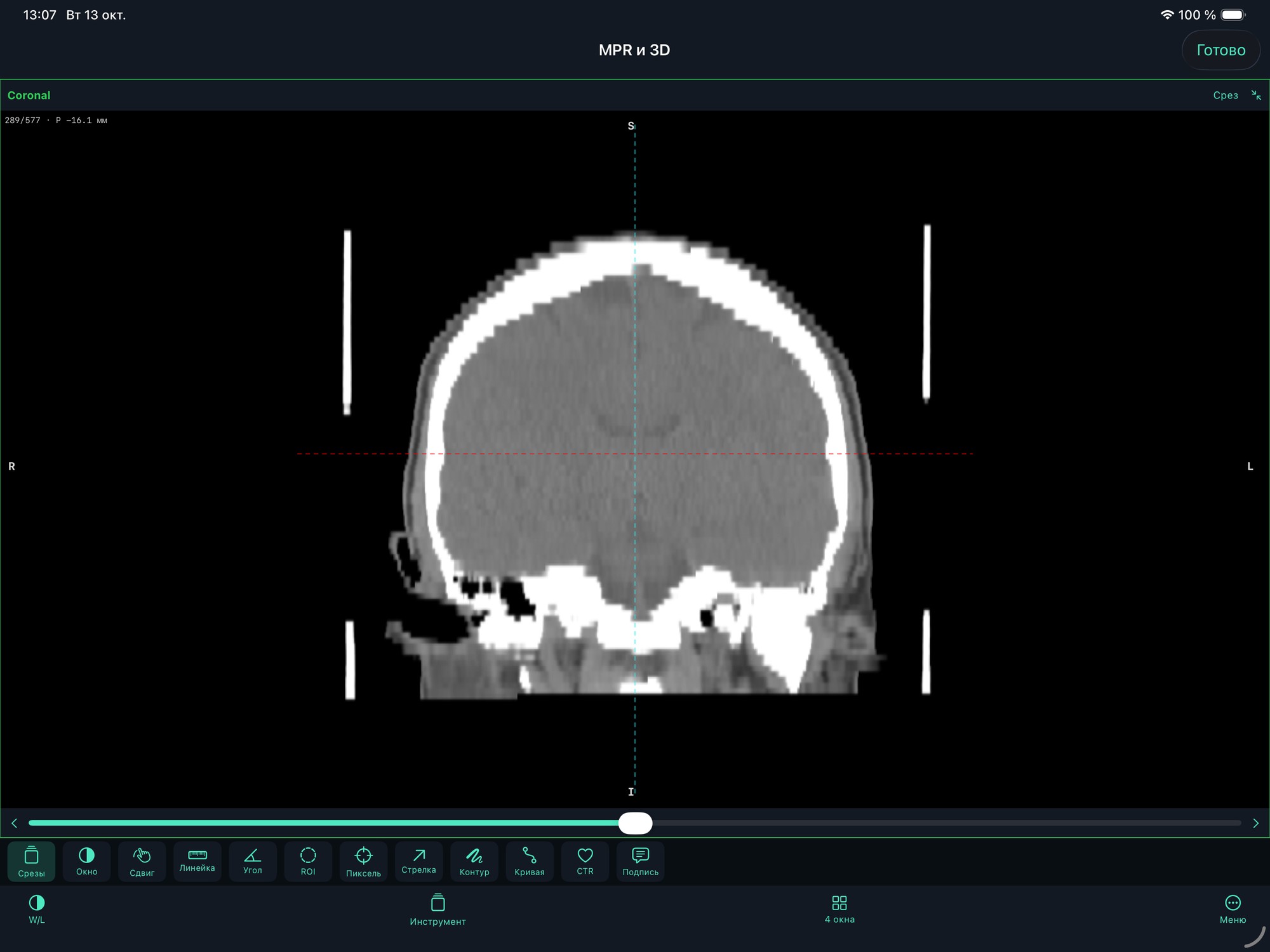
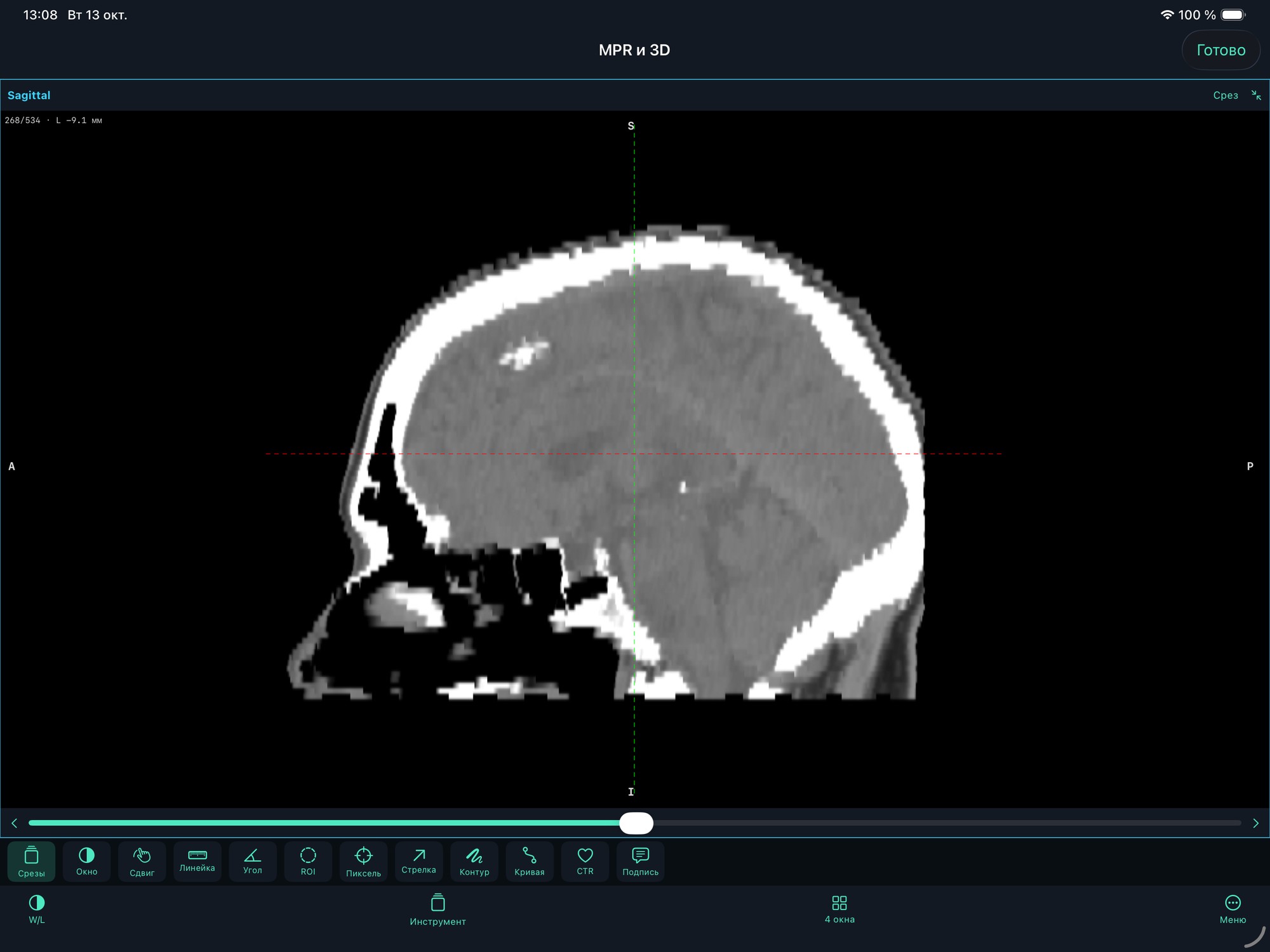
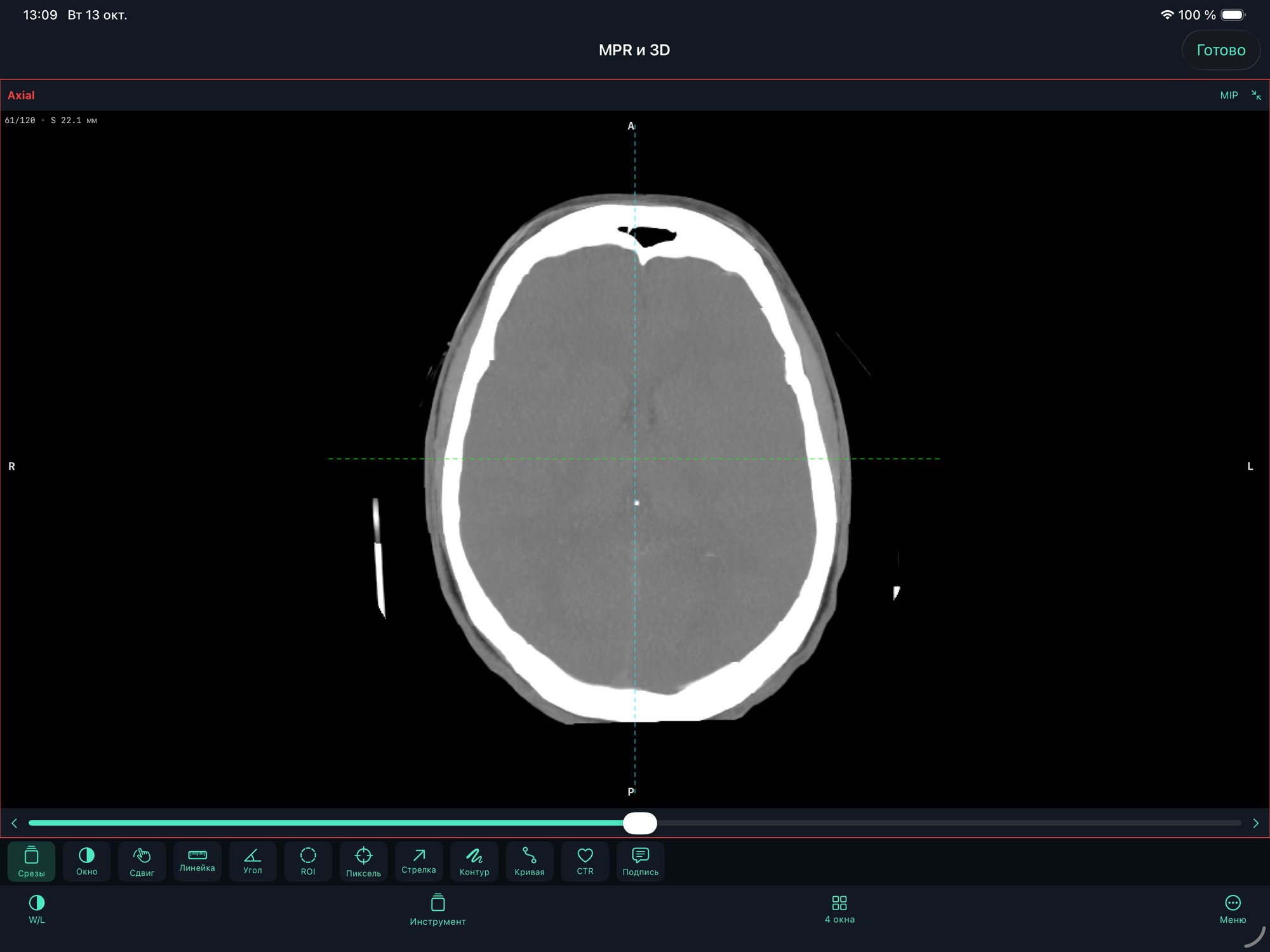
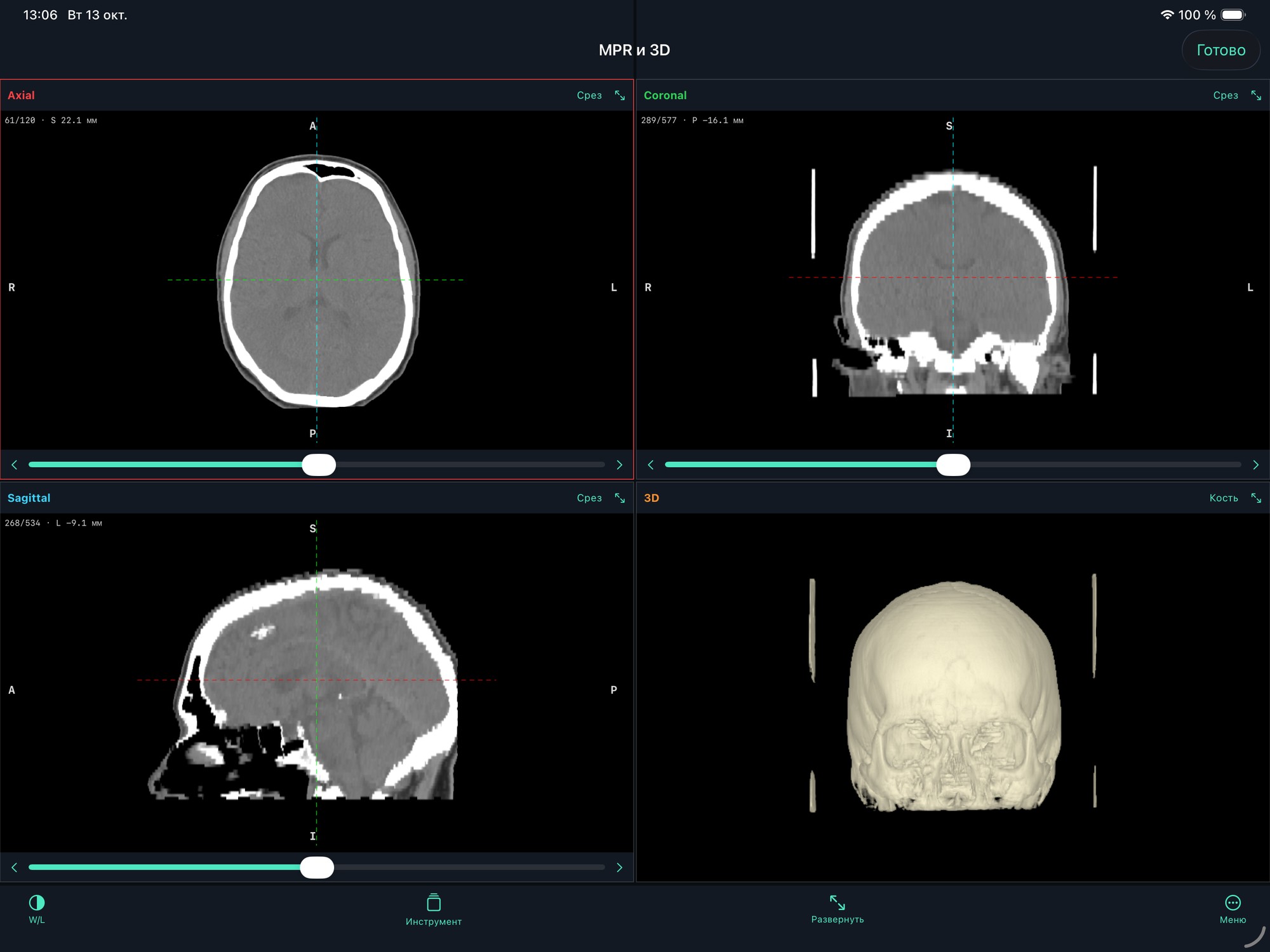
MPR: four linked views
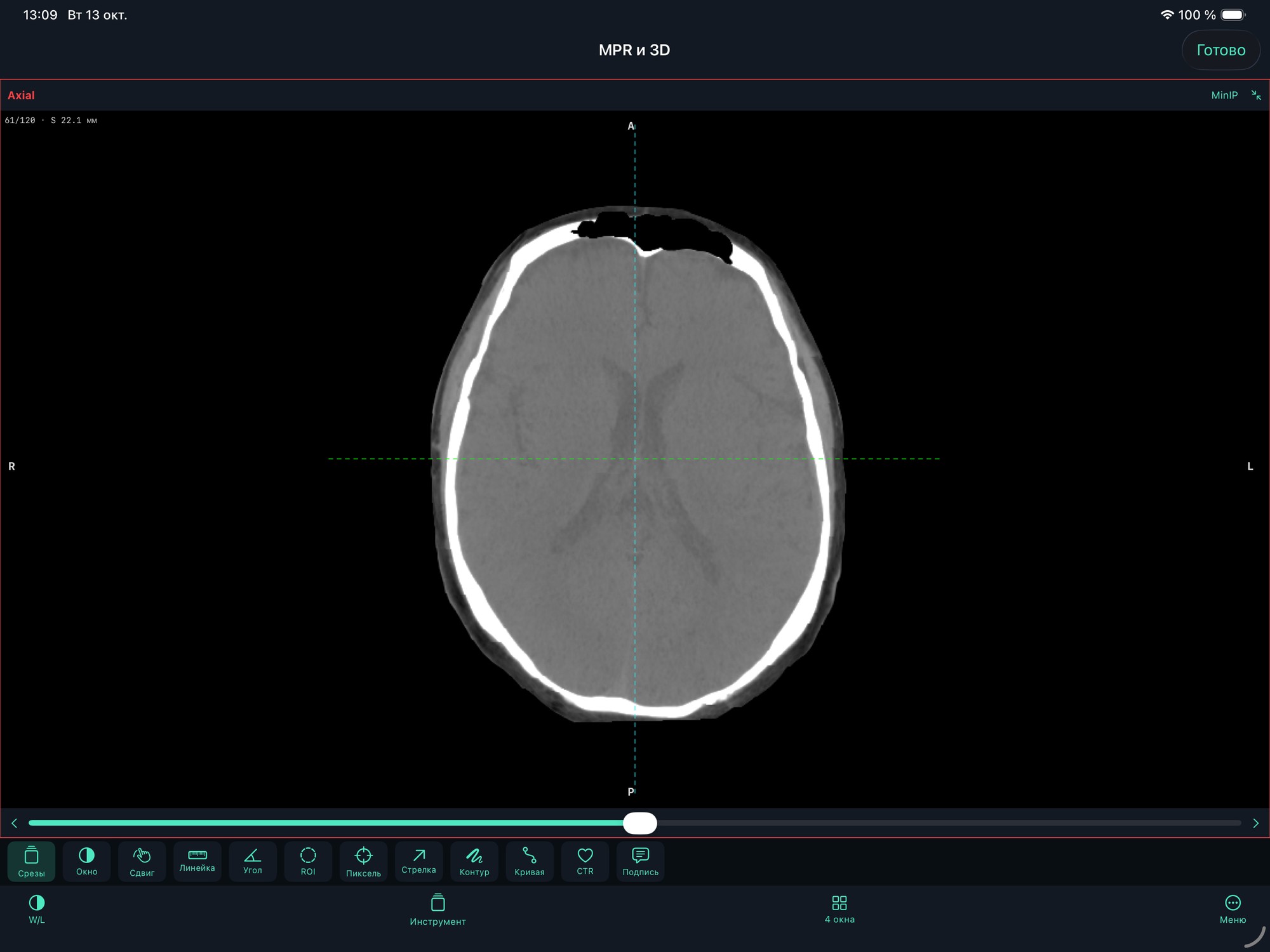
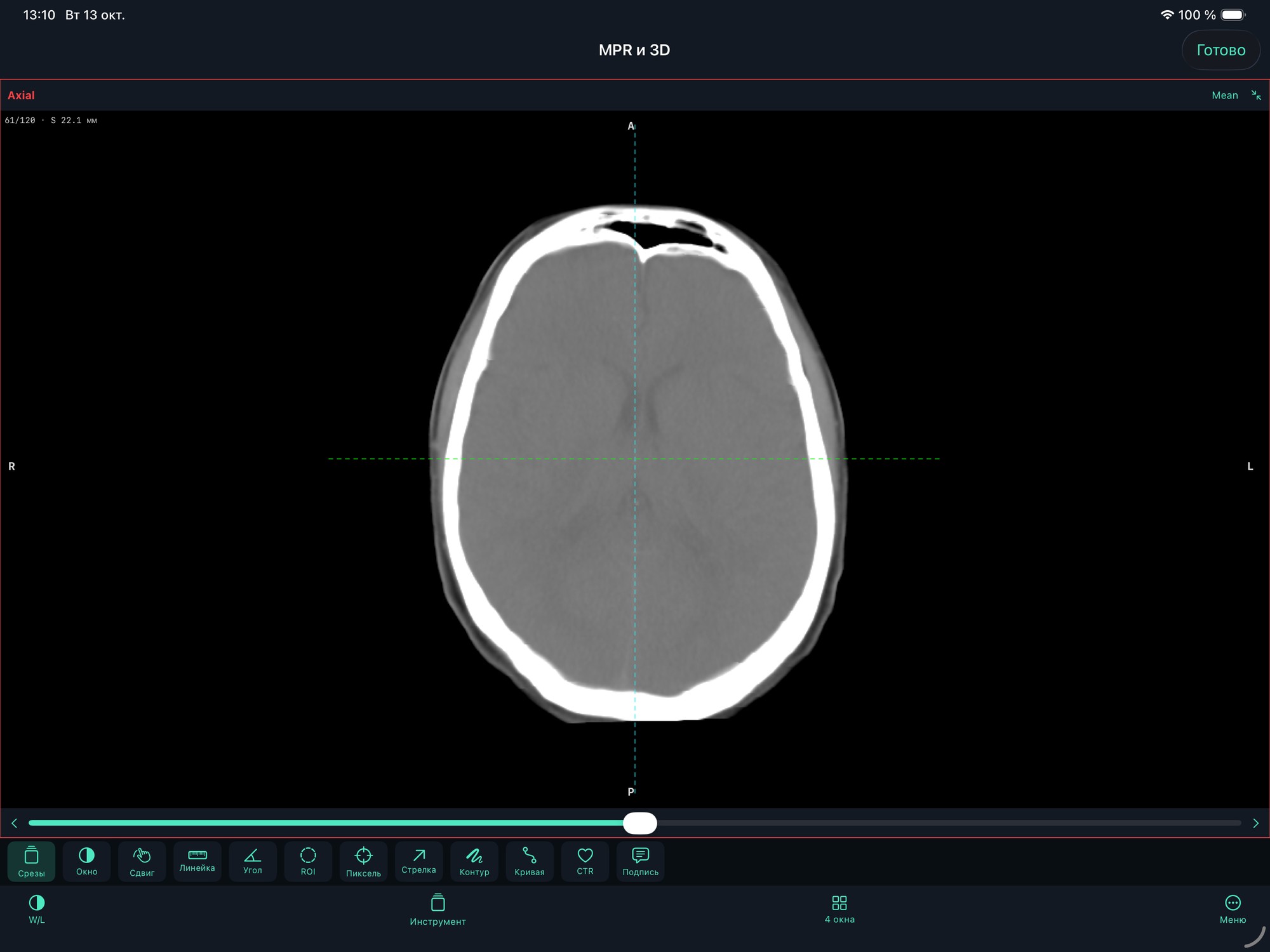
Axial, coronal and sagittal slices alongside the 3D volume. Moving a slice updates its reference lines on the other two planes. Expand any pane to inspect it individually.
Open a series → «…» → MPR and 3D. Select a plane and move its slice slider. Double-tap the pane or use its expand button; collapse it to return to the four views.
Choose a single slice or MIP, MinIP and Mean projections with adjustable slab thickness.
02 / In TestFlight 1.7
3D MPR: planes at any angle
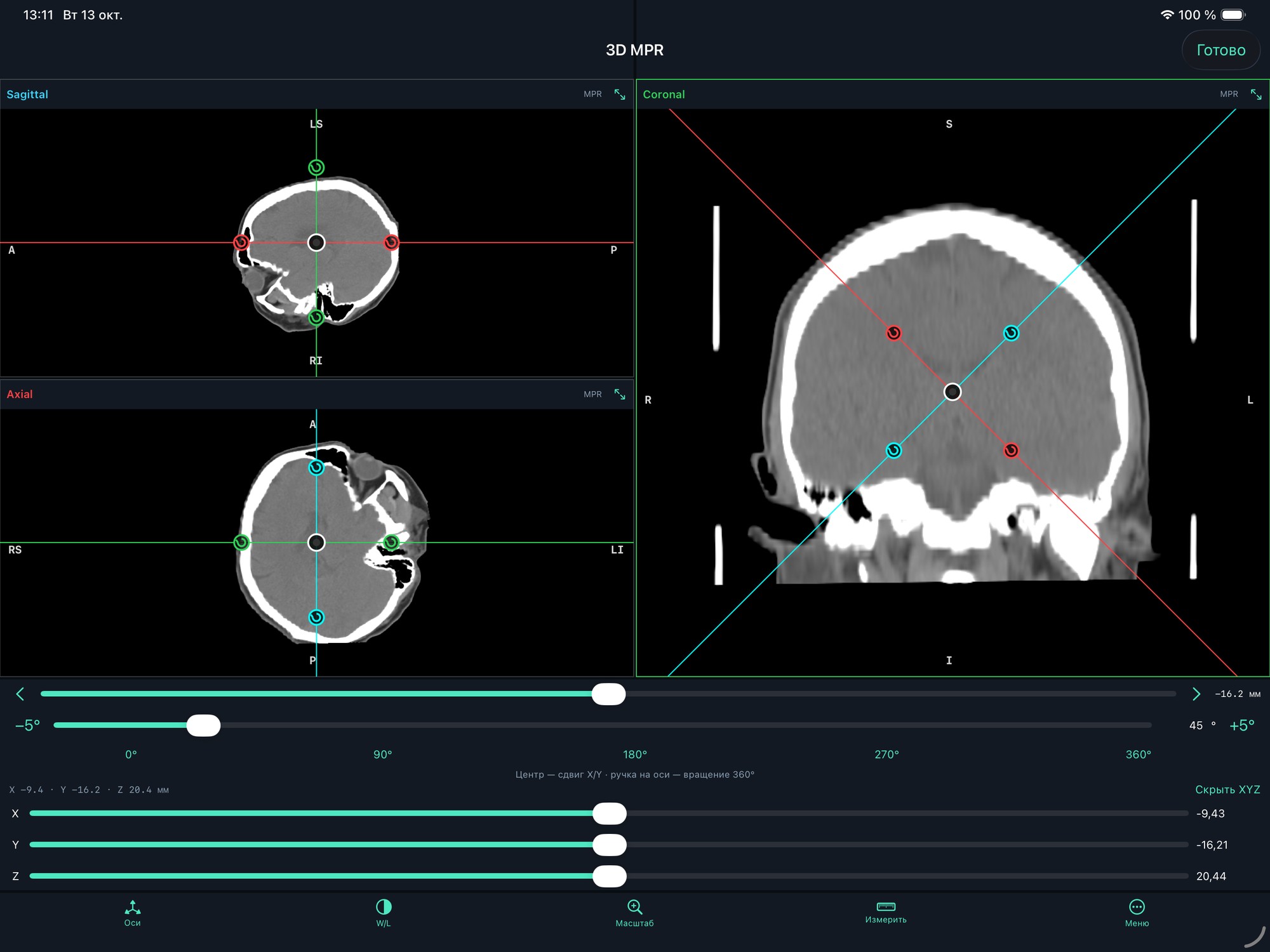
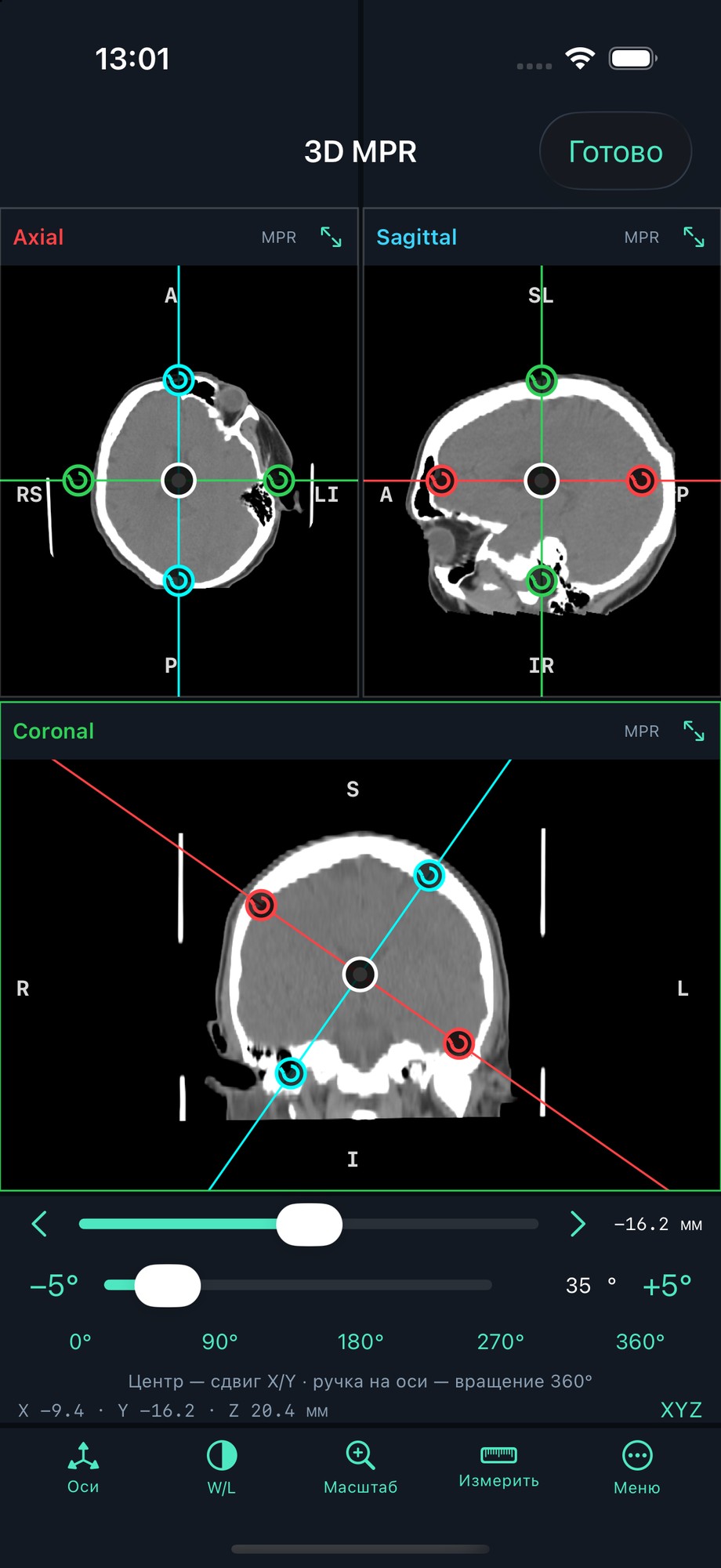
Three linked planes intersect at a shared DICOM coordinate point. Move that point in X/Y/Z and rotate planes through 360° around it to inspect oblique slices and their positions in the other views.
Series → «…» → «3D MPR». In Axes, drag the white centre to move the shared position and the coloured round handles to rotate around it. Use the X/Y/Z coordinates and angle controls for precise adjustments; W/L remains available.
Rotation preserves the shared centre. Compact panes suit iPhone; iPad landscape provides more room.
03 / In TestFlight 1.7
3D Curved MPR: follow a path
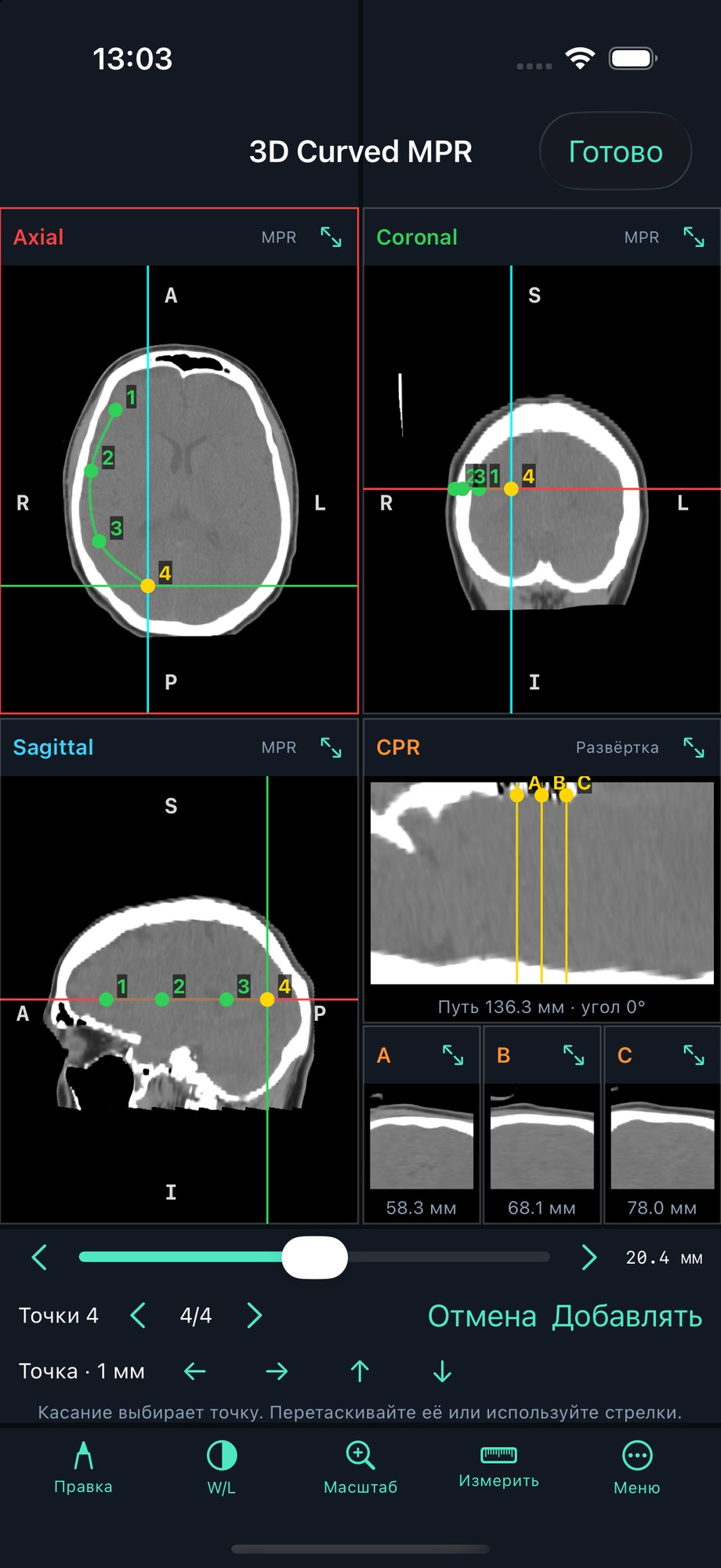
Define a spatial path manually on the linked planes. Straightened CPR unfolds the image along this path, while A/B/C show three cross-sections perpendicular to it.
Series → «…» → «3D Curved MPR» → Path. Place at least two distinct points. Move points in Edit, then adjust the along-path position, 0–360° angle, field of view and A/B/C spacing. The path is saved locally for the series.
Optional smoothing, slab thickness and quality controls are available. Expand CPR or any section. The user defines the path; there is no automatic vessel detection.
04 / In TestFlight 1.7
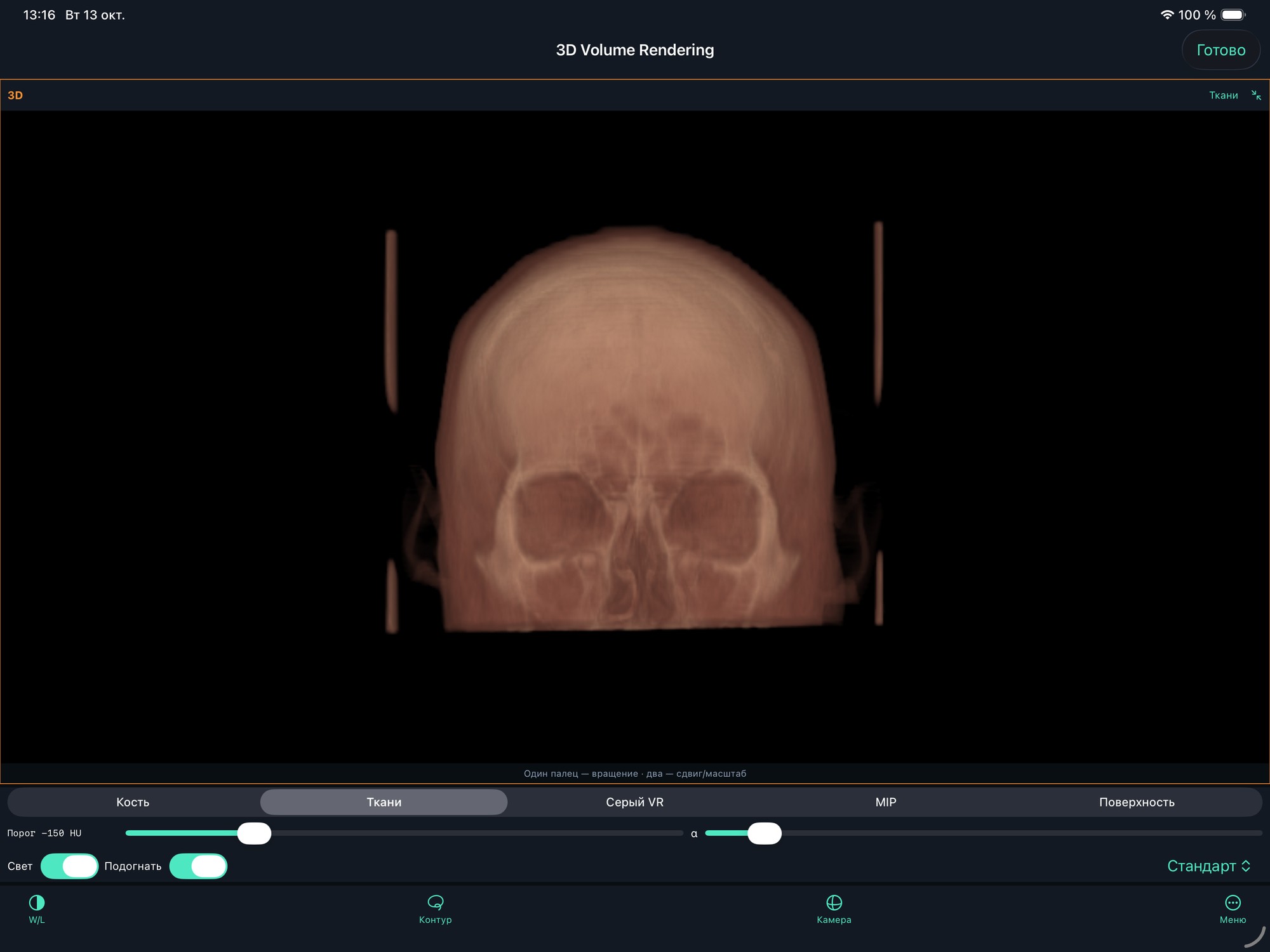
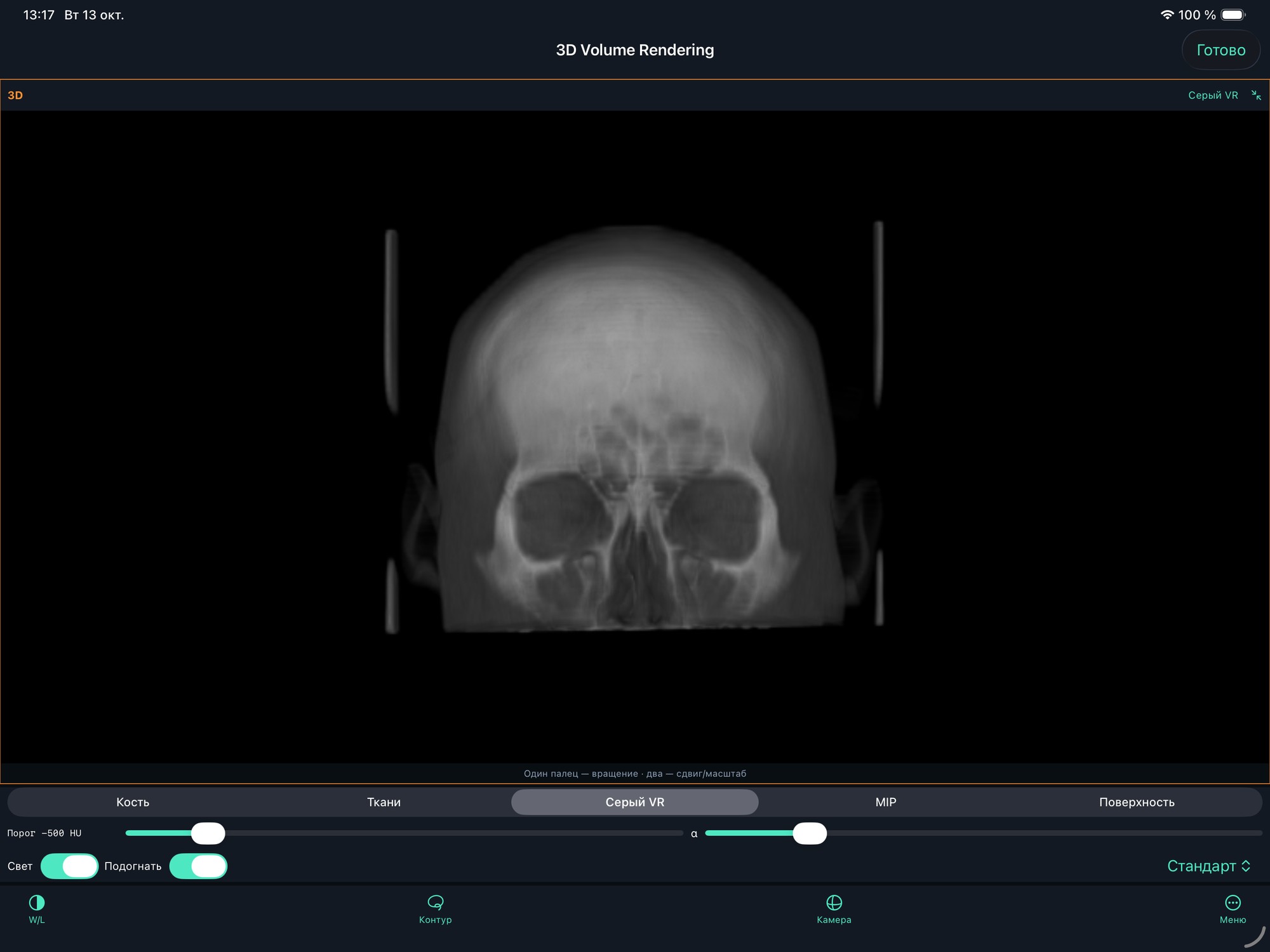
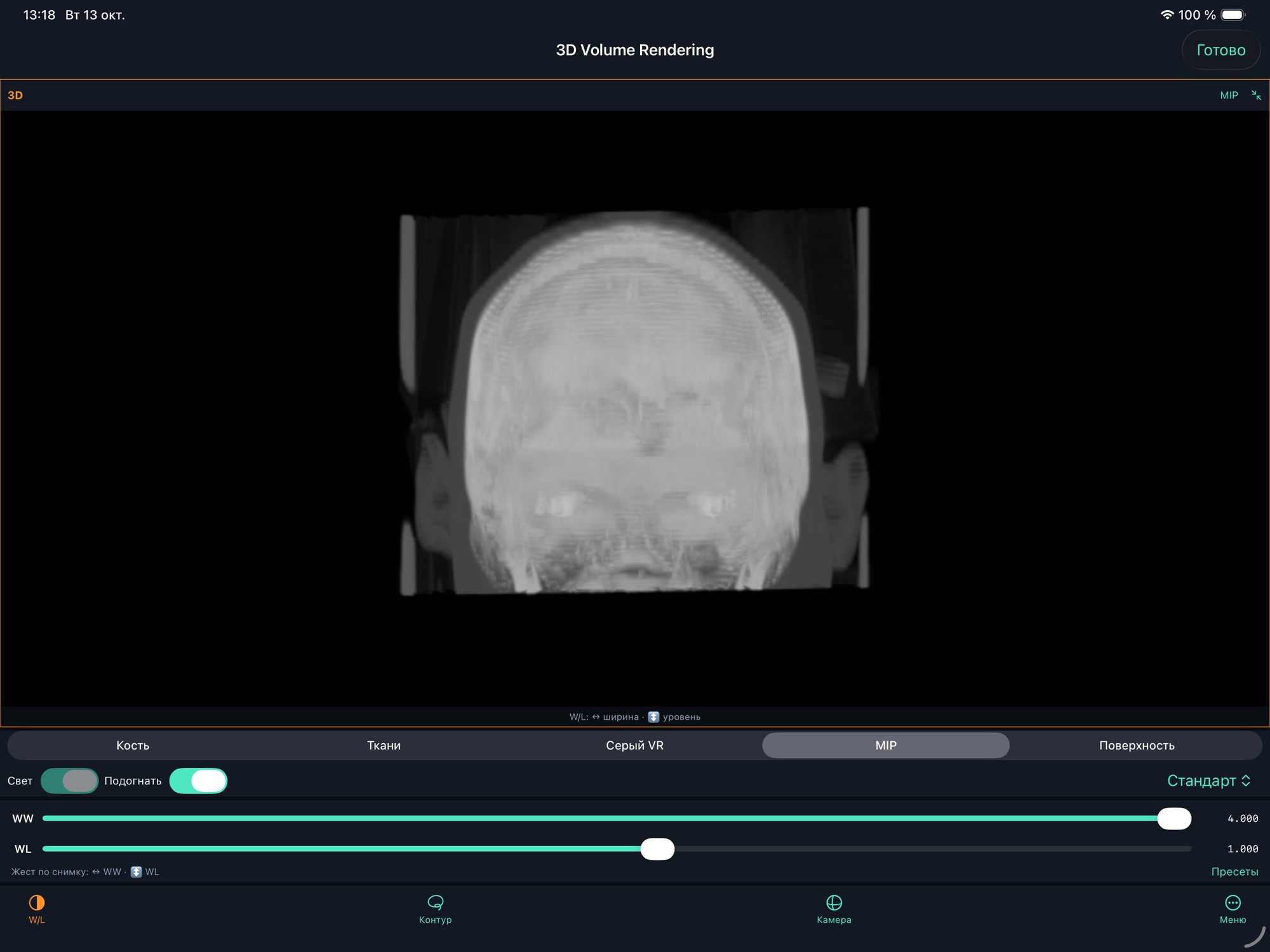
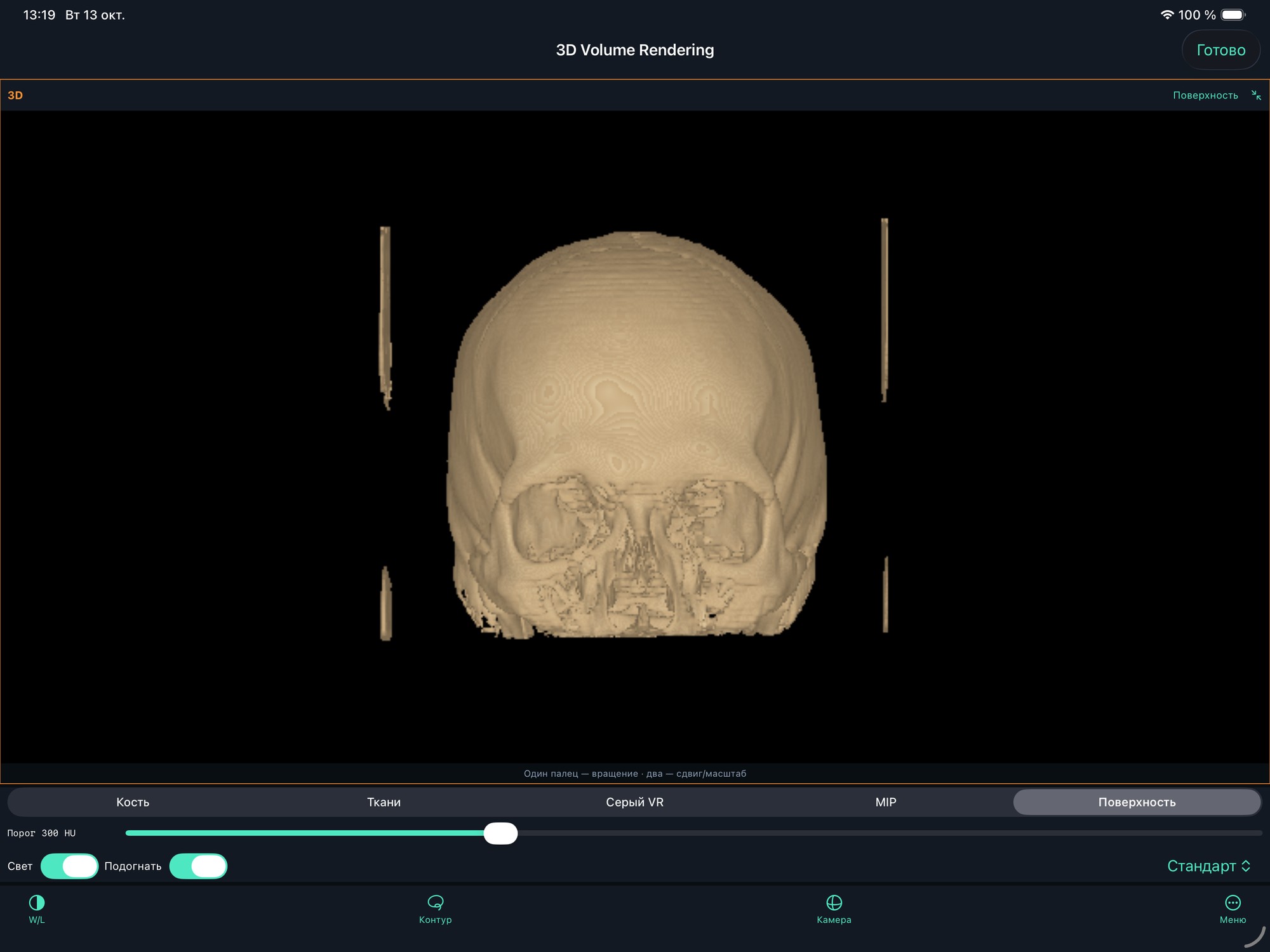
3D Volume Rendering: explore the volume
GPU rendering through Metal accumulates colour and opacity throughout the volume. Choose Bone, Tissue or Grayscale VR, then adjust windowing, threshold, opacity and lighting with the image in view.
Series → «…» → «3D Volume Rendering». One finger rotates, two fingers pan and a pinch zooms. Camera offers six standard views and precise rotation, pitch, roll and zoom. Choose Fast, Standard or Detailed quality.
MIP displays maximum intensity; Surface shows a threshold boundary. Export saves the current window, material, camera and cuts as a 1024 × 1024 image, not a polygon mesh or STL file.
05 / In TestFlight 1.7
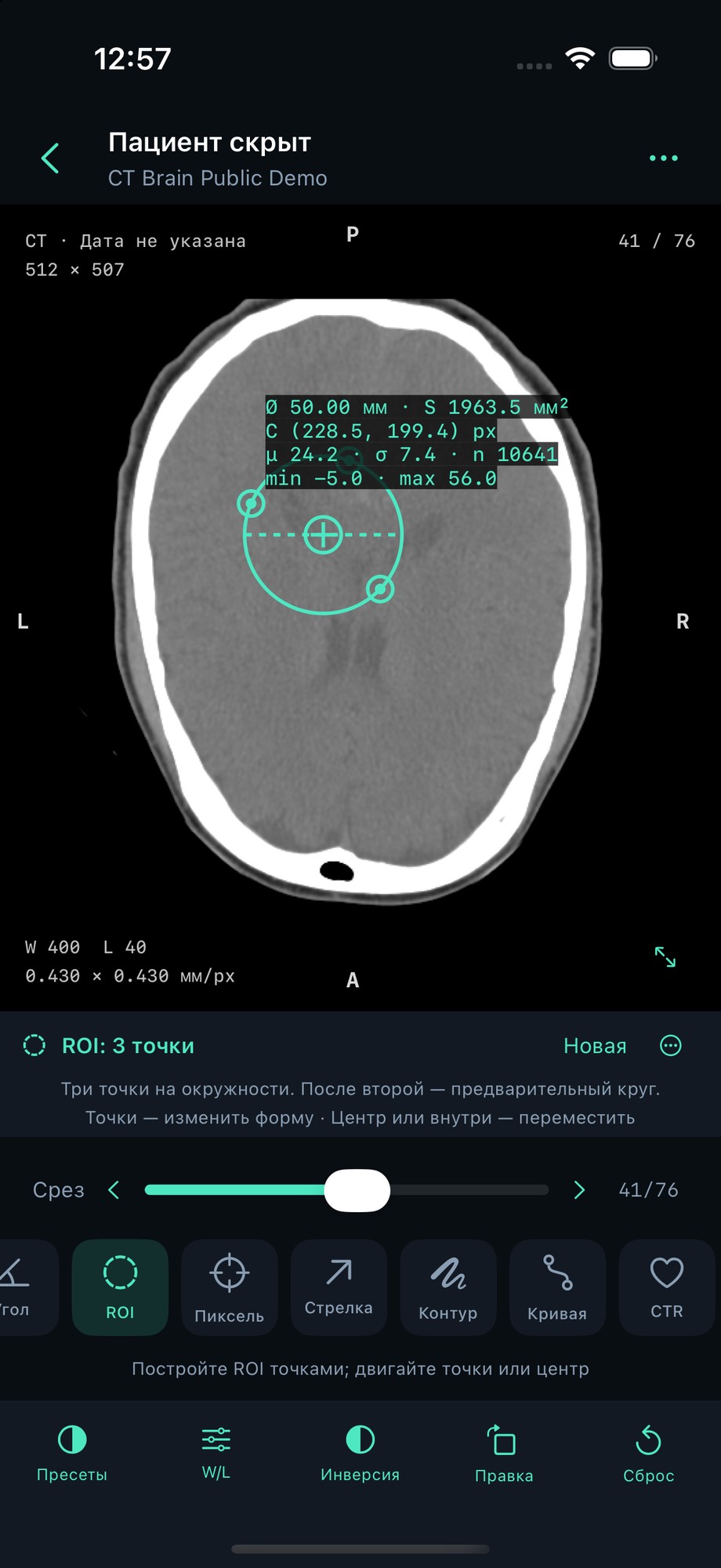
ROI: a circle you can adjust
Create a circle from three points, a circle from two diameter endpoints or an ellipse. The first point stays where you place it. Move individual points to refine the boundary, or move the whole ROI after drawing it.
On a 2D slice, select ROI → 3 points, Diameter or Ellipse. Place boundary points. Drag a point to reshape, or the centre/interior to move the ROI. New starts another ROI; the menu can undo a point or delete the selection.
Circle ROI provides centre and diameter, plus area and intensity statistics. Calibrated images use mm and mm²; uncalibrated images use pixels.
06 / In TestFlight 1.7
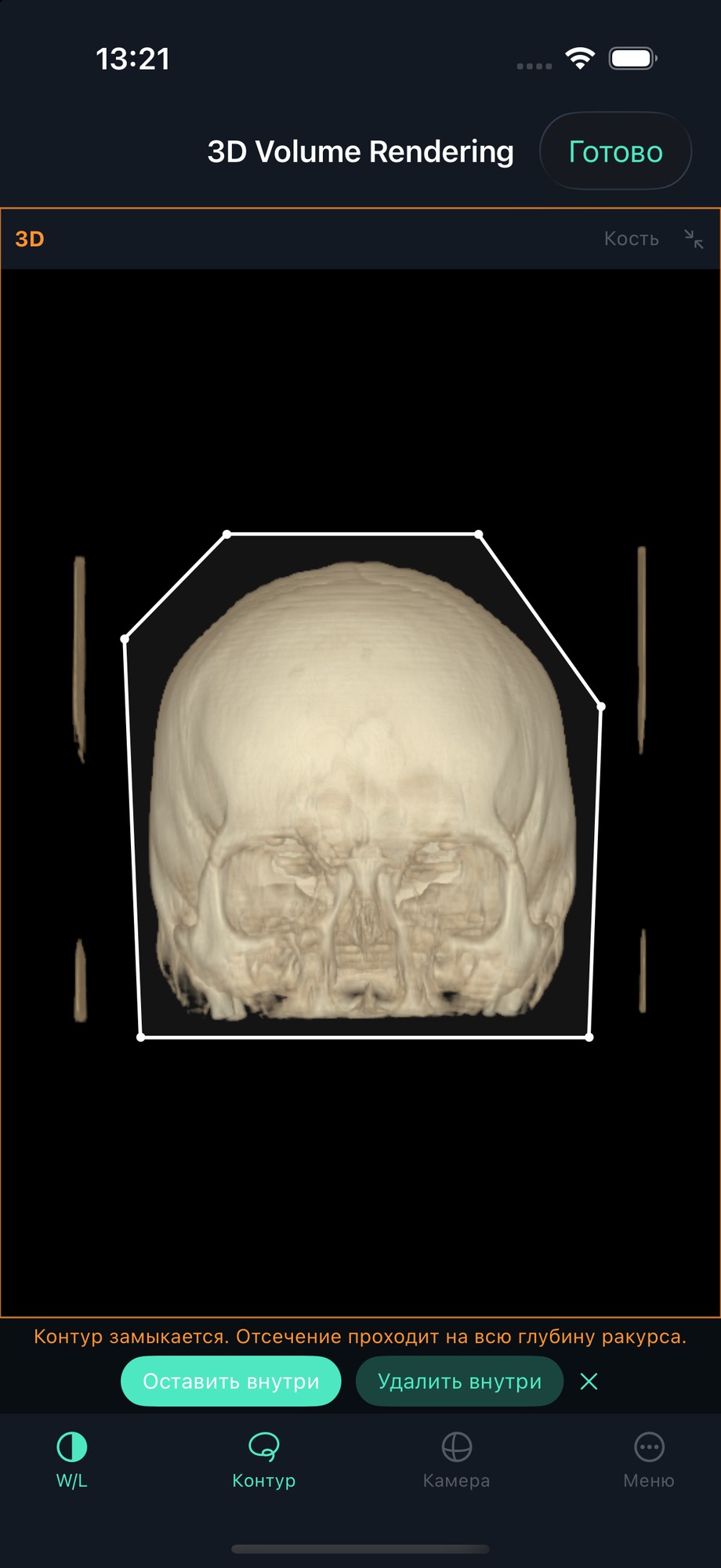
Cut the 3D view with your own contour
Draw a freehand boundary or place contour points. Keep the content inside or remove it. The cut extends through the full depth of the chosen camera view and stays fixed in the volume when you rotate it.
In 3D, select Contour, draw a boundary or place at least three points, then choose Keep inside or Remove inside. Inspect from other angles. Undo the last cut, restore the volume or trim with six axis bounds.
Cuts last until the reconstruction is closed. Original DICOM, MPR and CPR remain intact. This tool does not perform anatomical segmentation.
Tools for the complete viewing workflow
Live WW/WL in every view
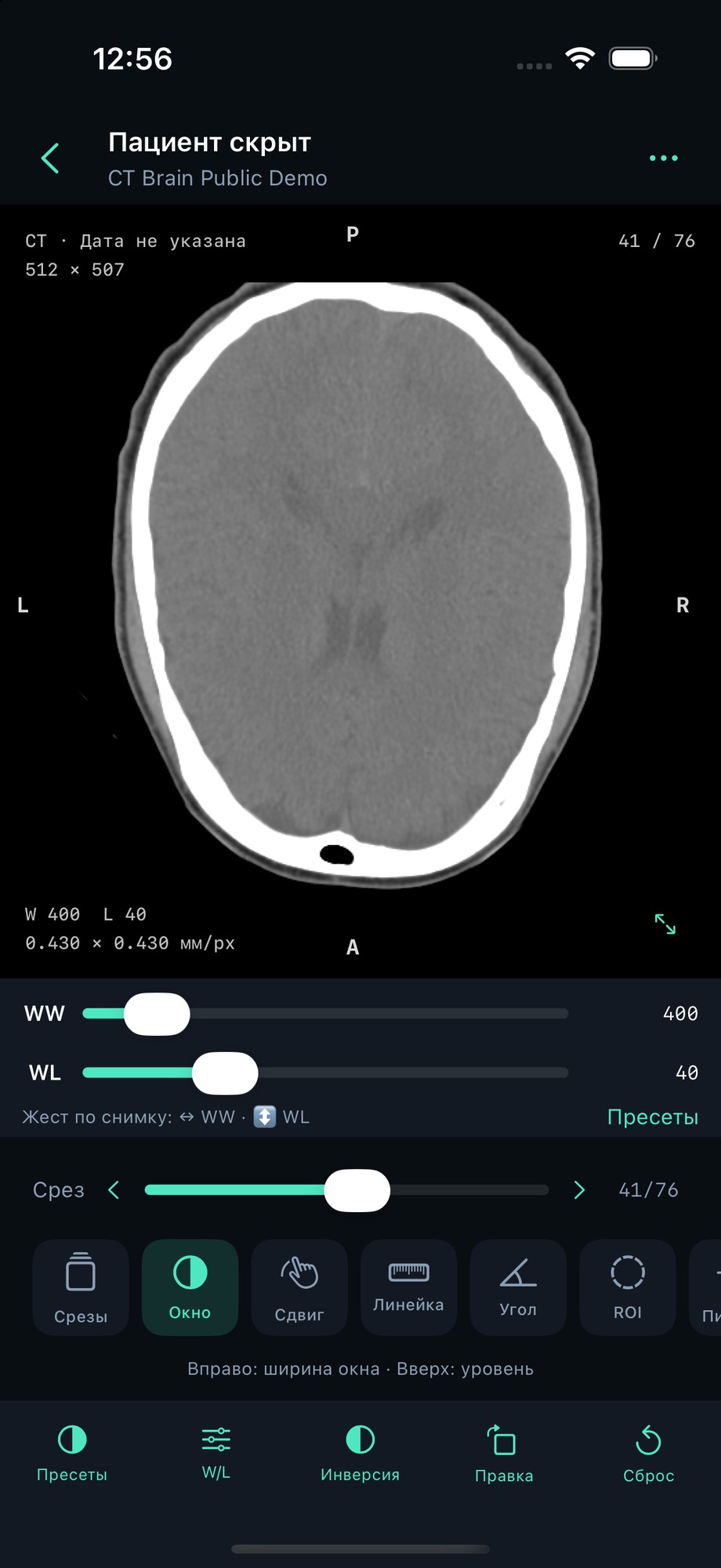
Sliders, numbers and the W/L gesture work in 2D, comparison, MPR, Curved MPR and 3D while the image remains visible. Horizontal motion changes window width WW; vertical motion changes level WL. CT includes bone, soft-tissue and lung presets. MRI uses signal intensity, not HU.
Slices, Cine and clear navigation
Use the slider and step buttons without starting a slideshow. Prefetching helps browsing; the previous frame remains until the next is ready. Cine plays at a selected speed. Back from the viewer returns to the series of the same study.
Files, downloads and DICOM
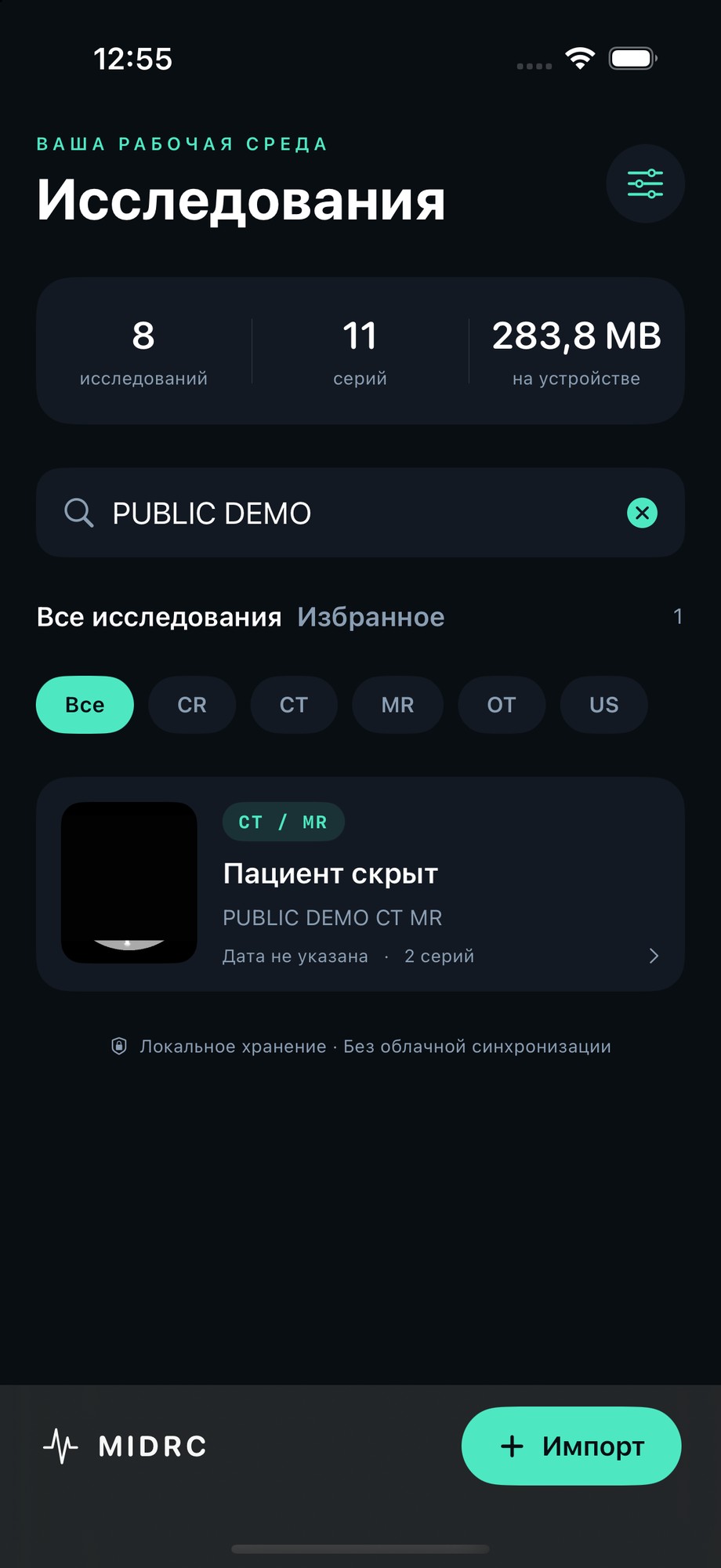
Import DICOM, ZIP, folders and multiple files from Files, iCloud Drive or Downloads, or Share → MIDRC. Direct HTTPS downloads and built-in demo studies are available. Viewing support depends on the file’s encoding and integrity.
Measurements and annotations
Ruler, angle, circle and freehand ROI, curve length, pixel values, arrows and labels. Annotations belong to their frame or plane. Zoom and windowing do not change physical measurement size; files without Pixel Spacing use pixels.
Compare two series
View two series from the same study side by side or stacked in portrait orientation. Adjust each window separately. Linked scrolling matches relative frame positions; it does not perform spatial registration between series.
Zoom and full-screen views
Pinch to zoom and pan the image. Rotate by 90°, flip, invert and use DICOM orientation labels. Expand individual reconstruction panes while retaining slice and window controls.
A local, protected library
Search by patient, ID or title; filter modalities, add favourites and notes. Hide patient information and optionally enable Face ID or the device passcode. No MIDRC account, automatic study upload to the developer or automatic cross-device sync.
DICOMweb, tags and export
Connect to a compatible HTTPS DICOMweb server with QIDO-RS/WADO-RS and inspect searchable metadata. Export snapshots with or without annotations, original DICOM or a study. Metadata cleaning does not remove text burned into pixels or guarantee complete anonymisation.
Four languages, with your annotations intact
Choose English, Russian, German or Spanish in Settings → App language. Changes apply immediately and persist after restart. Device language follows your preferred supported iOS language. Studies, notes, measurements and paths are preserved.
DICOM geometry. Missing data stays empty.
MPR and 3D require at least two compatible monochrome slices with valid spatial geometry. Slice position and orientation, including parallel shifts, are taken into account. Incompatible, duplicate or damaged frames may be excluded; missing regions are not invented. They remain empty in single-slice views. Projections combine only available data. Large volumes may use reduced reconstruction resolution; original data remain available in the 2D viewer.
On iPhone and iPad
The same tools adapt to the screen. Expand an individual pane for detail on iPhone. Use linked planes together and landscape orientation on iPad. Windowing, slice positions and volume parameters change with the image visible.
For viewing and study. MIDRC is not represented as a certified medical device and has not undergone clinical validation. Do not rely on it for primary diagnosis or treatment decisions. Measurements depend on source calibration and point selection.
The MIDRC team
Software development and medical consultation for MIDRC.
MPR and 3D combines three standard planes with a volume. 3D MPR rotates linked oblique slices around a shared centre. 3D Curved MPR unfolds a manually defined path and provides A/B/C sections. 3D Volume Rendering uses colour, opacity and camera controls. Open each from the selected series’ «…» menu.
Can I adjust contrast with the image visible?
Select W/L to show sliders and numbers below the image. Changes appear immediately. In W/L mode, horizontal dragging changes WW and vertical dragging changes WL. In 3D, threshold and opacity are separate controls.
Why is a volume unavailable?
Choose a compatible monochrome series with multiple slices. A single frame, colour data or missing spatial geometry is insufficient for these reconstructions. Include the error text, mode and slice count in a support inquiry; do not send patient information.
How do I open a download?
Find a DICOM or ZIP file in Files and use Share → MIDRC, or select files or a folder in Import. Then open the study and choose its series.
How do I get the test version?
Install TestFlight on an iPhone or iPad with iOS / iPadOS 17 or later. Open the public link using “Test on iOS” and accept the beta invitation. No personal invitation is needed. Tap Install or Update in TestFlight. The Android version is coming soon.
Do I need an account or upload studies here?
No MIDRC account is needed. Studies stay local and this website does not accept them. Downloads and requests to your own DICOMweb server are initiated by you; that server may require separate authorisation.
How do I switch the app language?
Library → Settings icon → App language. Choose Русский, English, Deutsch or Español. Device language follows your preferred supported iOS language, with English as the fallback. Language options retain their native names.

 Example from the app · Enlarge